1. General Description
This guide aims to assist A-Node web validation auditors to carry out their validation tasks. More information on A-Node can be found in A-Node Documentation.
1.1. Work progress guide
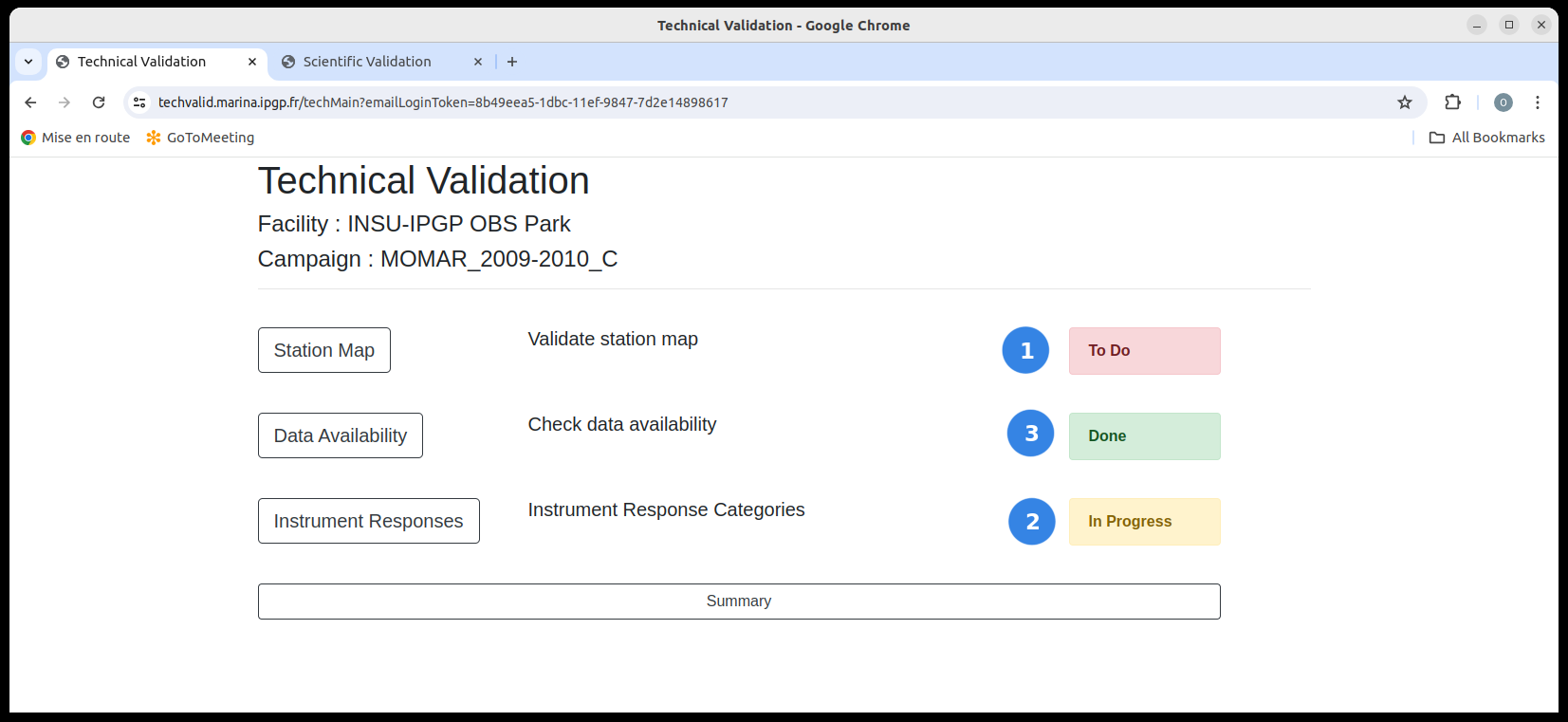
Fig. 1.1.1 Example of work progress indicators on the Main Page
Each page, image or category of images, contains a colored text box representing the state of the work :
To do
The work has not yet started
In progress
The work has been started but not yet finished
Done
The work has been finished. The auditor still can update this work (ex. add more comment)
1.2. Tree structure
The pathway from one image to another is controlled by a Tree structure. Technical and scientific validations have their own tree structure (see sections Technical web validation and Scientific web validation for details).
1.3. Image page
Image pages are the key elements of validation. These pages display a plot / image , plus buttons for validating/invalidating and/or commenting on the plot/image, then advancing to the next image.
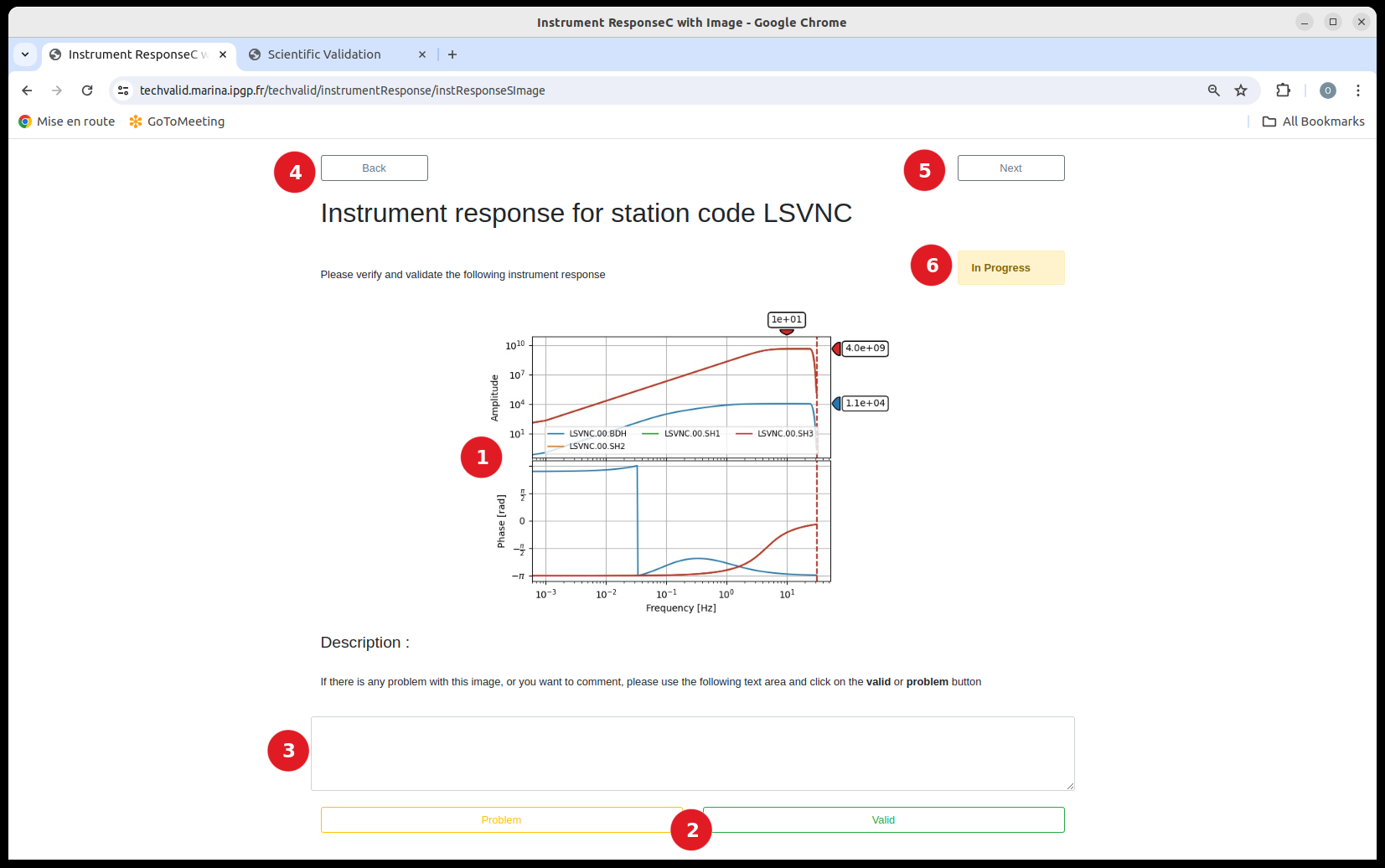
Fig. 1.3.1 An example of an Image Page
An Image Page (Fig. 1.3.1) contains :
An image
An auditor verifis that the image is correct.
valid and problem buttons
Use the valid button if the presented image is correct and click on the problem button if the image shows a problem that should be corrected.
A text area
Use this text area to comment on the image.
- If the valid button is pushed :
This text area can be empty (no comment)
This text area can contain a comment (useful for noting data problems that cannot be fixed)
If the problem button is pushed, you must write an explanation in this text area. If there is’nt any text in this thext area, the back and next buttons will disappear. In this case, write your comment and push the problem button again, the back and next buttons will reappear.
A back button
to go back to the upper level of the tree structure
A next button
to go to the next image page. If there is no next image in the tree structure, this button is absent.
Work progress indicator
as explained above.
1.4. Summary Page
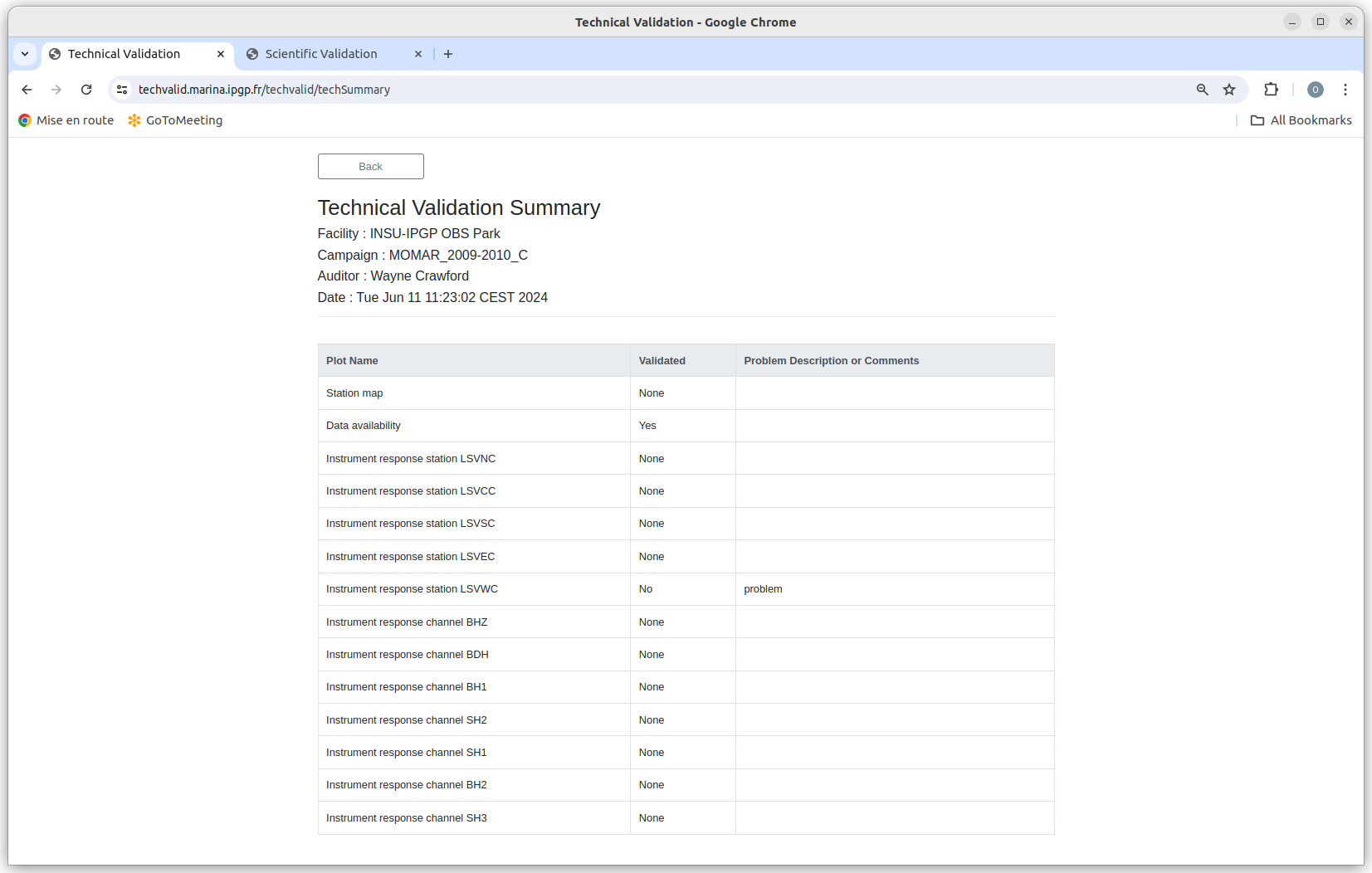
Fig. 1.4.1 An example of a summary page
- In the main page of both applications, a summary button can be used to display the Summary Page for the current validation. Each row represents an image page, and the validated column contains :
yes, for a validated page
No, for a problem page
None, for a page that has not yet been evaluated.
1.5. Confirmation Page
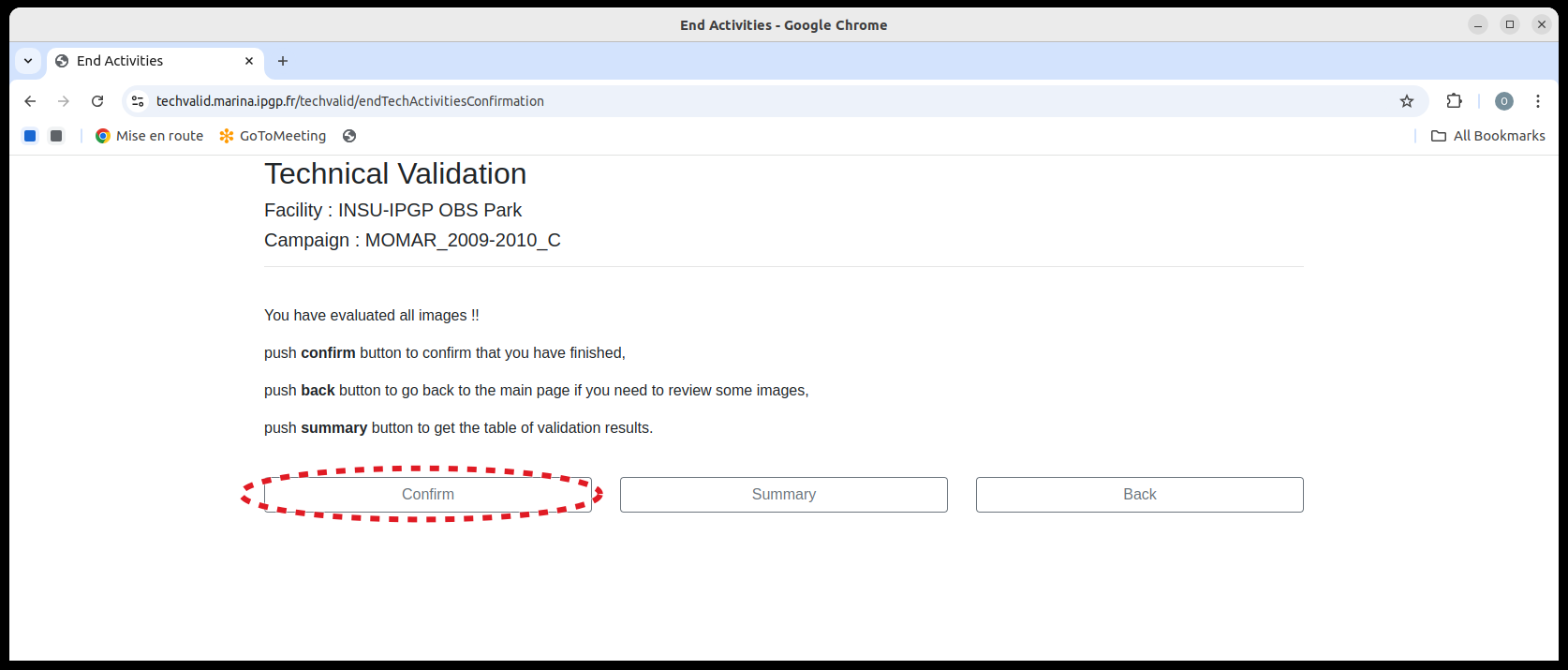
Fig. 1.5.1 Confirmation page
When an auditor finishes evaluating all plots, the system will ask the auditor to confirm that they have really finished. If so, the auditor then can select confirm button. If the auditor still needs to check or add some comments, he/she can go back to the main page by clicking on the back button. The table containing the summary of the validation can be displayed by pushing the summary button. Once the auditor confirms the evaluation, a summary of the evaluation will be sent via email.